

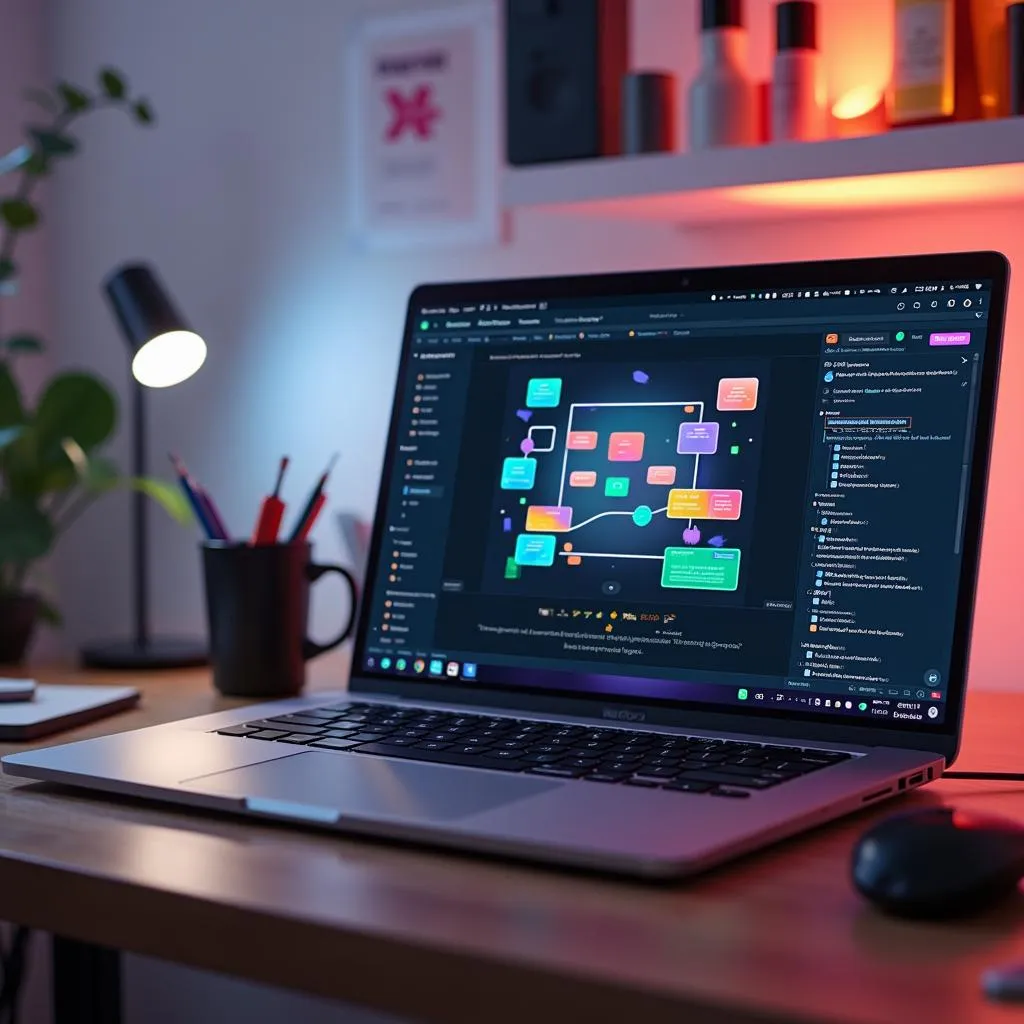
Ever wondered how some websites seem to come alive with dazzling animations and seamless transitions? The secret often lies in Webflow custom interactions. These tools are revolutionizing how designers craft dynamic, user-friendly websites—without writing a single line of code. Imagine transforming a static page into an interactive masterpiece that keeps visitors engaged and exploring. Dive into this guide to discover how you can harness the power of Webflow interactions to elevate your web design projects to new heights.
Table of Contents
- Introduction to Webflow Custom Interactions
- Understanding Webflow Custom Interactions
- Types of Interactions in Webflow
- Creating and Implementing Interactions
- Easing Curves in Webflow Custom Interactions
- Benefits of Using Webflow Interactions
- Practical Applications of Webflow Interactions
- Conclusion
Introduction to Webflow Custom Interactions
Hey there! If you’re a web designer looking to amp up your site without getting tangled in lines of code, then Webflow custom interactions might just be your new best friend. These nifty tools are designed to breathe life into static web pages, turning them into dynamic, engaging experiences. Think of them as the secret sauce that can make your designs pop and keep your users engaged. Whether you’re looking to create smooth animations or eye-catching effects, Webflow custom interactions are here to help you craft stunning websites with ease. Let’s dive into how these interactions are a game-changer for creating dynamic websites.
Understanding Webflow Custom Interactions
What Are Webflow Custom Interactions?
Alright, so what exactly are Webflow custom interactions? In simple terms, they are a set of tools that let you add animations and effects to your website, triggered by user actions like clicks, hovers, or scrolls. Imagine a static webpage coming to life with elements that move, change, or transform in response to what your users do. It sounds cool, right? Well, that’s the magic of Webflow custom interactions.
- Triggers: These are the actions users take, like clicking a button or scrolling down a page, that initiate an interaction.
- Animations: These are the visual effects that occur as a result, such as elements fading in or sliding across the screen.
- Timeline: A visual tool within Webflow that helps you set the timing and sequence of your animations, so everything flows smoothly.
These components work together to turn a simple webpage into an interactive experience, making it more engaging and fun for users.
Key Features of Webflow Custom Interactions
Webflow’s custom interactions are packed with features that cater to both newbies and seasoned designers. Here’s what makes them stand out:
- Visual Editor: You can create and tweak animations without writing any code. It’s all about dragging and dropping.
- Pre-built Animations: Need something quick? Webflow offers ready-made animations to save you time.
- Custom Animations: If you want something unique, you can design animations tailored to your specific needs.
- Responsive Design: These interactions are built to work seamlessly across all devices, ensuring a smooth experience for users on mobile, tablet, or desktop.
With these tools at your disposal, you’re equipped to create interactions that are not only visually appealing but also enhance the overall user experience.
By mastering Webflow custom interactions, you can transform any static webpage into a vibrant, interactive site that captivates your audience. This section should give you a solid foundation to start exploring the possibilities that Webflow offers.
Understanding Webflow Custom Interactions
What Are Webflow Custom Interactions?
Webflow custom interactions are like giving your website a personality boost without the need for writing code. They are a set of tools that allow you to add animations and effects to your website, triggered by user actions such as clicks, hovers, or scrolls. Imagine your static webpage springing to life, with elements moving or transforming in response to user activities. That’s the excitement that Webflow custom interactions bring to web design.
Here’s how it works:
- Triggers: These are user actions, like clicking a button or scrolling a page, that initiate an interaction.
- Animations: The visual effects that follow, such as elements fading in or sliding around.
- Timeline: A visual editor within Webflow that lets you control the timing and sequence of these animations, ensuring everything is perfectly synchronized.
These components work in harmony to make a static webpage dynamic and engaging, offering a richer user experience. If you’re curious about how Webflow can transform your entire design process, check out our guide on Webflow UX Design.
Key Features of Webflow Custom Interactions
Webflow’s custom interactions come with a suite of features that both beginners and seasoned designers will appreciate:
- Visual Editor: Forget about coding. With Webflow, you can create and customize animations using a simple drag-and-drop interface.
- Pre-built Animations: Short on time? Webflow has ready-made animations that you can use right away.
- Custom Animations: If you want something unique, you can design animations tailored specifically to your project’s needs.
- Responsive Design: These interactions ensure your website works smoothly on any device, whether it’s a phone, tablet, or desktop.
By utilizing these features, you can create visually striking interactions that enhance user experience and make your website stand out. For more insight into mastering Webflow, you might also find our article on Transform Your Designs Into Webflow helpful.
Key Takeaways
- Webflow custom interactions transform static pages into interactive experiences.
- They rely on triggers, animations, and timelines to create dynamic effects.
- The visual editor in Webflow simplifies the animation process, eliminating the need for coding.
- Pre-built and custom animations cater to both quick projects and tailored needs.
- Interactions are designed to be responsive, ensuring smooth performance across devices.
This section has laid the groundwork for understanding how Webflow custom interactions can be a game-changer in web design, making your site more engaging and user-friendly. If you’re interested in diving deeper into the skills every Webflow designer should have, explore our article on What Every Webflow Web Designer Needs To Know.
Types of Interactions in Webflow
When diving into the world of Webflow custom interactions, it’s essential to understand the different types available. Each interaction type serves a unique purpose, enhancing your website’s interactivity and user engagement. Let’s break down these types and explore their potential uses.
Mouse Hover Interactions
Mouse hover interactions are all about providing instant feedback when users hover over elements like buttons or images. These interactions can make a website feel more responsive and engaging, turning simple elements into interactive ones.
- Effect: You can change properties such as color, size, or even add shadows to elements when a user hovers over them. This not only draws attention but also makes navigation intuitive.
- Use Case: They’re perfect for highlighting buttons or images, giving users a clear indication of interactivity. For instance, an image gallery could use hover effects to display additional details about a photo when hovered over.
Click Interactions
Click interactions are triggered when a user clicks on an element, such as a button or link. They are a powerful way to create interactive experiences without relying on complex code.
- Effect: These interactions can open modals, navigate to different pages, or toggle visibility of content. It’s a versatile tool for engaging users directly.
- Use Case: Click interactions are ideal for enhancing navigation and engagement. For example, you might use click interactions to expand a section of content or display a detailed view of a product in an e-commerce store.
Scroll Interactions
Scroll interactions add a dynamic layer to your website by animating elements in response to the user’s scroll actions. This type of interaction is great for guiding users through content in a visually appealing way.
- Effect: As users scroll, elements can fade in, slide into view, or even create a parallax effect where background and foreground elements move at different speeds.
- Use Case: They’re perfect for storytelling websites or those with long-form content, as they can reveal information gradually, maintaining user interest and engagement.
Advanced Interaction Types
Webflow also supports more advanced interaction types, which can significantly enhance user experience by adding depth and complexity to your designs.
- 3D Transformations and Lottie Animations: By incorporating 3D transformations, you can rotate, scale, and move elements in three-dimensional space, creating an immersive experience. Lottie animations are another advanced type that allows for lightweight, scalable animations that don’t compromise performance. If you’re looking to transform your designs into Webflow, these tools can be your best friends.
- Custom Cursors and Mouse Movement Animations: These interactions can further engage users by altering the cursor or creating effects that follow the user’s mouse movements, offering a unique and engaging browsing experience. For more on mastering these fascinating features, check out our guide on Webflow UX Design to elevate your creative process.
Understanding these types of Webflow custom interactions can help you design a website that not only looks stunning but also provides an engaging and interactive user experience. Whether you’re using simple hover effects or complex 3D transformations, these interactions give you the tools to push your designs to new heights.
Creating and Implementing Interactions
When it comes to bringing your website to life, creating and implementing interactions in Webflow is both a rewarding and straightforward process. By using Webflow custom interactions, you can craft experiences that captivate your users without ever touching a line of code. Let’s dive into how you can start creating these dynamic interactions and compare pre-built options with custom creations.
Step-by-Step Guide to Building Interactions
Creating interactions in Webflow is a breeze once you get the hang of it. Here’s how you can get started:
-
Select an Element: First things first, identify the element on your webpage that you want to animate. This could be anything from a button to an image or a block of text.
-
Open the Interactions Panel: In Webflow, the interactions panel is your command center. Open it up to begin designing your animation.
-
Choose a Trigger: Decide what action will set off your animation. Will it be a click, a hover, or perhaps a scroll? Triggers are the starting point for all your interactions.
-
Define the Animation: Now, it’s time to get creative. Select the type of animation you want, adjust the duration, and fine-tune the easing curve to make sure everything runs smoothly. If you’re curious about different design elements you can integrate, you might find inspiration in the Webflow UX Design article, which explores transforming your creative process with Webflow.
-
Preview and Adjust: Before going live, preview your animation. This step is crucial to ensure that the interaction looks and feels just right. Make any necessary tweaks for the best results.
And just like that, you’ve added an interactive element to your website! By following these steps, you can transform static pages into lively, engaging experiences with Webflow custom interactions.
Comparison: Pre-built vs. Custom Interactions
When designing interactions in Webflow, you have the option to use pre-built animations or create your own custom animations. Here’s a quick comparison to help you decide:
| Feature | Pre-built Interactions | Custom Interactions |
|---|---|---|
| Ease of Use | Very easy | Requires some setup |
| Customization | Limited | Highly customizable |
| Time Efficiency | Quick to implement | Takes more time |
| Uniqueness | Commonly used | Unique to your site |
Pre-built interactions are perfect if you’re looking to save time and need something that works out of the box. These are great for standard effects like fades or slides. On the other hand, custom interactions give you the freedom to tailor animations precisely to your site’s needs, offering a unique touch that sets your designs apart. For more insights on how to transform your design process, check out the Designer Webflow guide, which is perfect for creatives looking to revolutionize their work.
In conclusion, whether you opt for pre-built animations for their simplicity and speed, or lean towards custom interactions for their flexibility and uniqueness, Webflow custom interactions provide a powerful toolkit for creating engaging and interactive web experiences. By mastering these tools, you can enhance user engagement and transform how visitors interact with your site.
Easing Curves in Webflow Custom Interactions
Creating smooth and engaging animations involves more than just deciding when and where things move. Easing curves are an essential part of making these movements feel natural and pleasing to the eye. In the world of Webflow custom interactions, understanding and implementing easing curves can significantly enhance the user experience on your site.
Understanding and Benefits of Easing Curves
Easing curves control the speed and acceleration of animations, determining how an element transitions from one state to another. In Webflow, you have access to several types of easing curves:
- Linear: This curve maintains a constant speed throughout the animation, ideal for straightforward, uniform movements.
- Ease-In: Starts slowly and speeds up towards the end, great for giving more emphasis to the beginning of an action.
- Ease-Out: Does the opposite by starting quickly and slowing down at the end, perfect for highlighting the conclusion of an action.
- Ease-In-Out: Combines the best of both worlds with a slow start and end, ensuring a smooth transition.
Benefits of using easing curves include:
- Precision Control: Tailor the pace of animations to match your design vision, providing a more refined interactive experience.
- Enhanced User Experience: Smooth animations can make interactions feel more intuitive and engaging, keeping users on your site longer.
- Brand Consistency: Consistent use of easing curves across your site can reinforce your brand’s tone and aesthetic.
For more insights on how these elements can elevate your design, you might find it useful to explore how Webflow design services can enhance the creativity and user-friendliness of your site.
Implementing Custom Easing Curves
Creating custom easing curves in Webflow is a simple process but can yield powerful results. Here’s a step-by-step guide:
- Select the Element: Choose the element you wish to animate.
- Open the Interactions Panel: Navigate to the interactions panel to start setting up your animation.
- Choose an Animation: Select the animation you want to apply to your element.
- Customize the Easing Curve: Use the Bezier curve editor in Webflow to fine-tune the easing curve. You can drag the handles of the curve to adjust the speed and flow of the animation.
- Preview and Adjust: Test the animation to ensure it looks and feels right, making any necessary adjustments for the best effect.
Tips and Common Mistakes
When working with easing curves, keep these tips in mind to avoid common pitfalls:
- Experimentation is Key: Don’t be afraid to try different curves to see which best fits your design. Each project may require a unique approach.
- Consistency Matters: Use similar easing curves throughout your site to maintain a cohesive look and feel.
- Gather User Feedback: Test your animations with real users to see if they enhance the experience as intended.
- Avoid Overcomplicating: Simple animations often work best. Overly complex movements can be distracting and may impact performance.
- Performance Considerations: Ensure your animations run smoothly across all devices by testing them thoroughly. Heavy animations can slow down your site, especially on mobile devices. For additional strategies on maintaining seamless functionality, check out the essential guide on managing Webflow websites.
By mastering easing curves in Webflow custom interactions, you can create more engaging and visually appealing animations that enhance your website’s overall user experience. Whether you’re aiming for subtle transitions or dynamic effects, easing curves offer the flexibility to achieve your creative goals.
Benefits of Using Webflow Interactions
Alright, let’s dive into why using Webflow custom interactions can be a game-changer for your website. These interactions are powerful tools that enhance user engagement, streamline your workflow, and even boost your SEO game. Here’s how they can make a difference:
Enhanced User Engagement and Experience
Webflow custom interactions are all about making your website more engaging and interactive, which is a big win for user experience. Here’s how they do it:
-
Interactive Elements: By incorporating animations and effects, you can keep users glued to your site. Think hover effects on images that reveal more details or buttons that change color when clicked. These small touches make a big difference in keeping users engaged.
-
Dynamic Content: Use animations to draw attention to key content areas. For example, you can highlight new products on an e-commerce site or showcase portfolio pieces with smooth animations. This helps guide users through your site intuitively and makes their experience memorable. For more inspiration, you might want to check out how Webflow UX Design can transform your creative process.
-
Improved Navigation: Smooth transitions and animations can make navigating your site feel seamless. Whether it’s a page loading animation or a scroll-triggered effect, these interactions can make movement through your site feel natural and enjoyable.
Streamlined Workflow and Customization
Webflow interactions not only enhance the user experience but also make your design process more efficient:
-
Visual Editor: With Webflow’s visual editor, you can design and implement interactions directly within the platform. This means you can see changes in real-time and adjust them on the fly without needing to write any code.
-
Pre-Made Templates: Need to speed up your design process? Webflow offers pre-made interaction templates that you can customize to fit your needs. This saves time and lets you focus on what really matters—creative design. If you’re curious about optimizing your workflow further, take a peek at Webflow Design Services to elevate your online presence.
-
Advanced Triggers and Tool Integrations: Webflow supports a variety of triggers like scroll, hover, and click, allowing for complex interactions. Plus, you can easily integrate with third-party tools to extend functionality, making it a flexible option for diverse project needs. To enhance your store’s efficiency, consider Webflow App Integration.
SEO Benefits
Webflow interactions can also positively impact your site’s SEO, which is a bit of a hidden gem:
-
Improved Dwell Time: Engaging interactions keep users on your site longer, which can lead to improved dwell time—a factor that search engines consider when ranking sites.
-
Reduced Bounce Rate: By making your site more engaging, users are less likely to leave quickly, reducing the bounce rate. This is another positive signal to search engines that your site is worth ranking higher.
-
SEO-Friendly Animations: Webflow ensures that animations do not slow down page load times, maintaining performance which is crucial for SEO. Fast, responsive sites are more likely to rank well in search results. For further insights into optimization, the guide on Webflow Performance Optimization might be useful.
Comparison: Webflow Interactions vs. Traditional Coding
To give you a better idea of how Webflow interactions stack up against traditional methods, here’s a quick comparison:
| Feature | Webflow Interactions | Traditional Coding |
|---|---|---|
| Ease of Use | High | Low |
| Time Efficiency | Fast | Slow |
| Customization | High | High |
| Coding Knowledge Required | None | Extensive |
| Real-Time Preview | Yes | No |
As you can see, Webflow custom interactions provide a user-friendly way to create engaging and interactive sites without the need for extensive coding knowledge. Whether you’re looking to enhance user engagement, streamline your workflow, or improve SEO, these interactions offer a robust solution.
By incorporating Webflow custom interactions, you can transform your website into a dynamic, engaging platform that not only captivates users but also ranks well in search results. Whether you’re working on an e-commerce site, a portfolio, or a business website, these interactions provide the tools you need to make your vision a reality.
Practical Applications of Webflow Interactions
When it comes to making your website stand out in today’s crowded digital space, Webflow custom interactions play a key role. These interactions are all about adding that extra layer of engagement and polish to your web design. They not only make your site more visually appealing but also enhance the user experience, making it more intuitive and enjoyable. Let’s explore how Webflow custom interactions can be applied across different types of websites, from e-commerce to business platforms.
E-commerce and Portfolio Websites
Webflow custom interactions are particularly beneficial for e-commerce and portfolio websites. These platforms thrive on visual impact and user engagement, and interactions can significantly enhance both.
-
Product Showcases: Using animations to highlight product features and benefits can make a huge difference. Imagine a product image that subtly zooms in or rotates to showcase different angles when a user hovers over it. This not only draws attention but also helps potential customers engage with the product more deeply.
-
Interactive Galleries: For portfolio sites, showcasing work in a dynamic gallery format can be incredibly engaging. By using scroll-triggered animations or hover effects, you can create a storytelling journey through your projects, capturing user interest and highlighting your creativity. For those curious about diving deeper into crafting a stunning website, Webflow Designs can be a game-changer, offering insights into leveraging Webflow for your creative projects.
-
Dynamic Project Displays: Webflow allows for seamless transitions and animations that can bring your projects to life. Whether it’s a sliding carousel of your latest artworks or a fade-in of detailed project descriptions, these interactions make your portfolio more interactive and appealing.
For more ideas on enhancing your design, you might want to explore Webflow UX Design, which offers insights into transforming your site into a creative masterpiece.
Business Websites
Business websites often need to make a strong impression quickly. Webflow interactions can help achieve this by making content engaging and accessible.
-
Engaging Landing Pages: Use Webflow custom interactions to create captivating landing pages that hold the user’s attention. For example, you can implement a smooth page load animation that introduces your brand’s key message or latest offerings, setting a professional tone right from the start.
-
Interactive Infographics: Presenting data in a visually appealing and interactive manner can significantly enhance comprehension and retention. Webflow’s scroll interactions can help you build infographics that unfold as users scroll, making complex information more digestible and engaging.
These interactions not only make your business website look modern and professional but also enhance usability, guiding users effortlessly through your content. If you’re keen on mastering design techniques that can elevate your business site, Website Design With Webflow provides a comprehensive guide to boosting your online presence.
Best Practices and SEO Considerations
While Webflow custom interactions are fantastic tools for enhancing web design, it’s important to implement them thoughtfully to avoid potential pitfalls, especially regarding SEO.
-
Keeping Interactions Simple: Overloading your site with too many animations can be distracting and impact page load times. Focus on a few key interactions that enhance the user journey without overwhelming it.
-
Testing Across Devices: Ensure that interactions work seamlessly on all devices, including mobile and tablets. This not only improves user experience but also maintains your site’s SEO performance, as mobile-friendliness is a ranking factor.
-
Optimizing Load Times: Lightweight animations should be prioritized to keep your site running smoothly. This is crucial for maintaining fast load times, which are essential for both user satisfaction and SEO rankings. For more on optimizing your design, check out Webflow Performance Optimization, which offers strategies for maintaining speed and efficiency.
By integrating these practices, you can leverage Webflow custom interactions to create websites that are not only visually striking and user-friendly but also optimized for search engines. Whether you’re managing an e-commerce platform, showcasing a portfolio, or building a business website, these interactions can help you achieve your goals effectively.
Conclusion
The Power and Flexibility of Webflow Custom Interactions
Webflow custom interactions have proven themselves to be a game-changer for web designers looking to create stunning, interactive websites without the need for extensive coding. These tools offer a level of power and flexibility that can transform a static webpage into a vibrant, engaging experience. By leveraging Webflow custom interactions, you can seamlessly incorporate animations and effects that enhance user engagement and create a more dynamic user experience.
- Visual Editor: Create complex animations with ease using a drag-and-drop interface.
- Responsive Design: Ensure your interactions look great on any device.
- Customization: Tailor animations to fit your brand’s unique style.
For those wanting to dive deeper into how Webflow designers are essential in this transformative process, there’s a lot to explore about their role in modern web design.
Encouraging Experimentation with Webflow Custom Interactions
One of the most exciting aspects of Webflow custom interactions is their capacity for experimentation. Designers are encouraged to try new ideas and push the boundaries of what’s possible in web design. The intuitive interface allows for quick adjustments and real-time previews, making it easy to explore different animation styles and effects. This flexibility not only sparks creativity but also empowers designers to develop innovative solutions that captivate users.
- Try New Ideas: Use the visual editor to experiment with different interaction styles.
- Real-Time Previews: Instantly see the effects of your changes, allowing for immediate iteration.
- Creative Freedom: With no coding constraints, let your imagination guide your designs.
If you’re curious about how these interactions are reshaping the creative process, the insights from Webflow UX Design might just inspire your next project.
Creating Visually Stunning, Interactive, and User-Friendly Websites Without Coding
At its core, Webflow custom interactions are about simplifying the web design process while allowing for visually stunning results. By removing the coding barrier, Webflow opens up a world of possibilities for designers of all skill levels. This democratization of web design means more people can create professional, interactive websites that are not only beautiful but also user-friendly and engaging.
- No Coding Required: Design without the need to write code, making web design accessible to everyone.
- User Engagement: Create interactions that capture attention and encourage exploration.
- Professional Results: Achieve a polished, professional look with minimal effort.
By embracing Webflow custom interactions, you’re not just building a website; you’re crafting an experience. This innovative toolset transforms how designers approach web development, focusing on creativity and user interaction to achieve impactful results. Whether you’re a beginner or a seasoned pro, Webflow designs empower you to design with confidence and create websites that truly stand out.
